User Guide
Last updated: August 12, 2026
Mimu helps you practice an instrument by recording yourself, listening back, and refining your performance. Use the four tabs at the bottom of the screen — Record, Accompaniment Library, List, and Settings — to build your practice routine.
1Recording
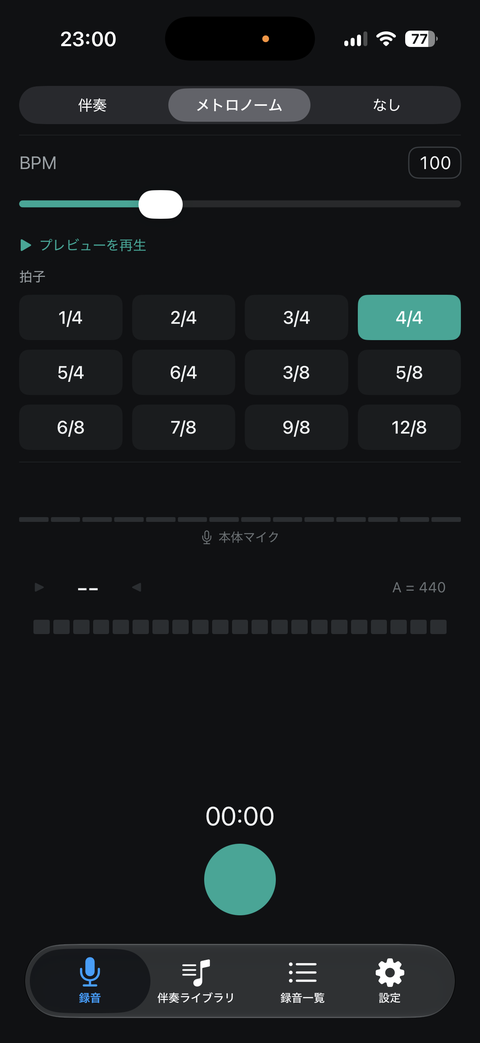
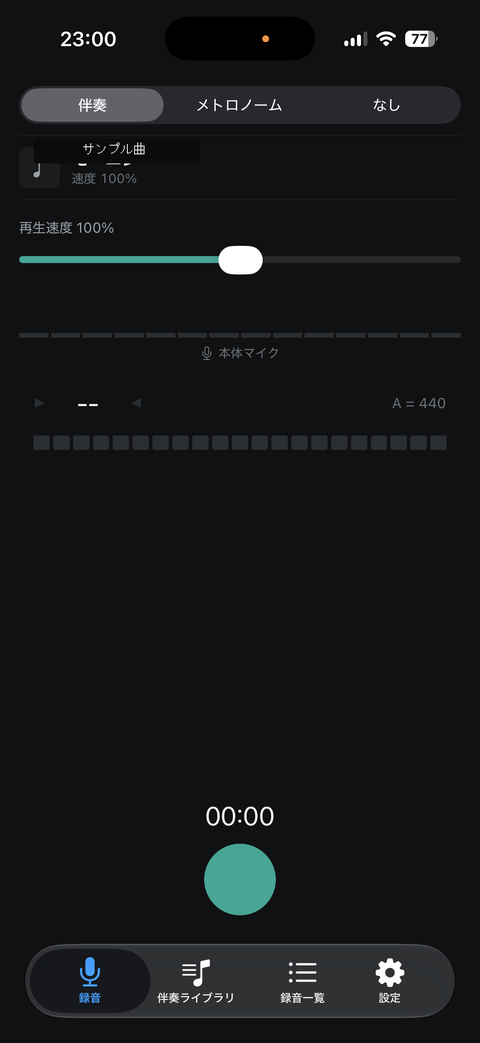
The "Record" tab lets you choose from three backing modes.
- Accompaniment: pick a track and adjust its playback speed while you record along with it
- Metronome: set a BPM and time signature (a wide range from 1/4 to 12/8 is supported) and record along with a click track. Use "Play Preview" to hear it before you start
- None: record just your performance, with no backing track
The active microphone (such as the built-in mic) is shown at the bottom of the screen, along with a real-time tuner that detects the pitch of your playing and displays it as a note name (like "C4" or "E4"), referenced to A = 440Hz. Tap the round button to start recording.
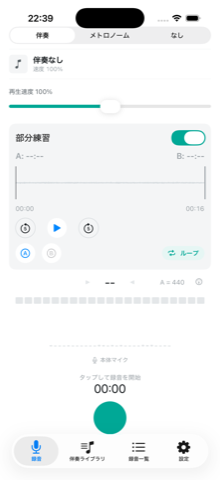
Partial Practice: when you pick a track in Accompaniment mode, a toggle appears — turn it on to show a waveform where you can set point A and point B, then loop that section while you practice. You can also jump forward/back 5 seconds with the skip buttons.
2Reviewing Your Take
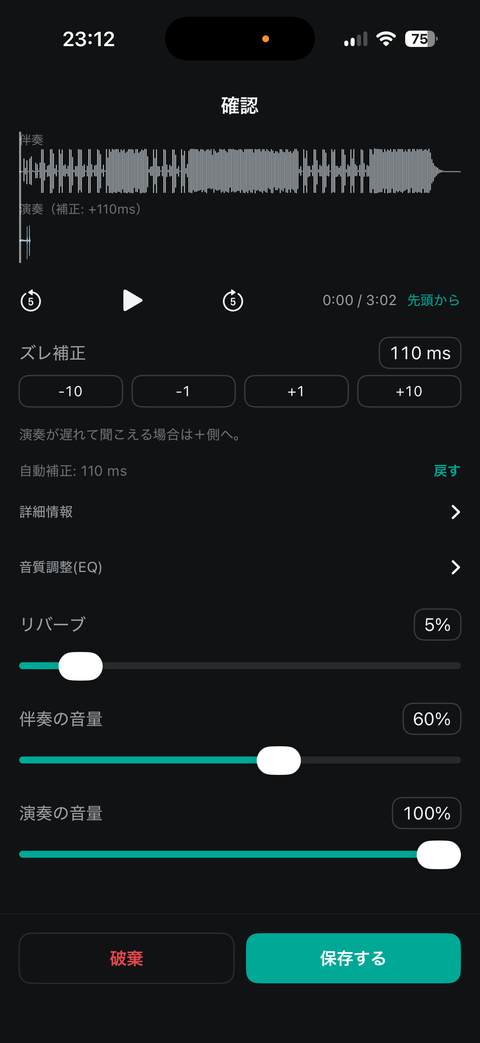
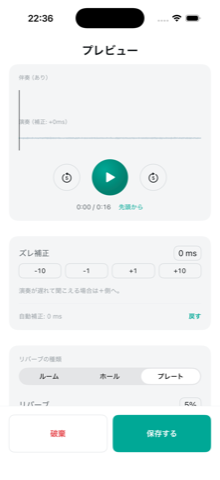
Once you stop recording, you'll land on the review screen.
- Both the "Accompaniment" and "Performance" waveforms are shown so you can compare them visually
- Play back your take with 5-second skip controls
- Timing correction: fine-tune the offset between the accompaniment and your recording, starting from an auto-detected value and adjusting manually in -10/-1/+1/+10 ms steps. If your performance sounds delayed, adjust toward +. Tap "Revert" to go back to the auto-detected value
- Details: view deeper technical info, including output/input latency, manual offset, TimePitch delay, and playback rate
- EQ: adjust low, mid, and high bands independently. If a recording sounds muffled, try lowering the low band or boosting the high band for more clarity (EQ requires Mimu Pro)
- Reverb: pick a type (Room/Hall/Plate) from the segmented control and adjust the intensity with the slider. You can also adjust accompaniment volume and performance volume on this screen
- Tap "Save" to keep the take, or "Discard" to try again
3Accompaniment Library
Add and manage your own accompaniment tracks here.
- Organized into three sub-tabs: "Albums," "Playlists," and "All Songs"
- Every sub-tab is searchable
- Use the button in the top-right corner to import tracks — you can add audio from your device's Files app or Music app (MP4 files are supported for audio-only import; files that contain video cannot be imported)
- If an import fails, the reason is shown — such as DRM protection, an iCloud file that hasn't been downloaded, or a general read failure
4Recording List
Browse and play back all your saved recordings — useful for reviewing your practice history over time.
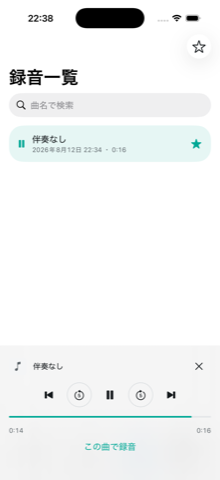
- While something is playing, a mini player stays docked at the bottom of the screen, even if you switch tabs. It shows elapsed/total time and has 5-second skip controls
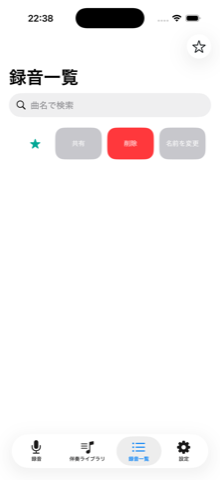
- Tap the star on any row to mark it as a favorite, and use the star button in the navigation bar to filter to favorites only
- Swipe a row left to reveal "Rename," "Delete," and "Share"
- While a recording is playing, tap "Record With This Track" to use it as the backing track for your next recording
5Settings
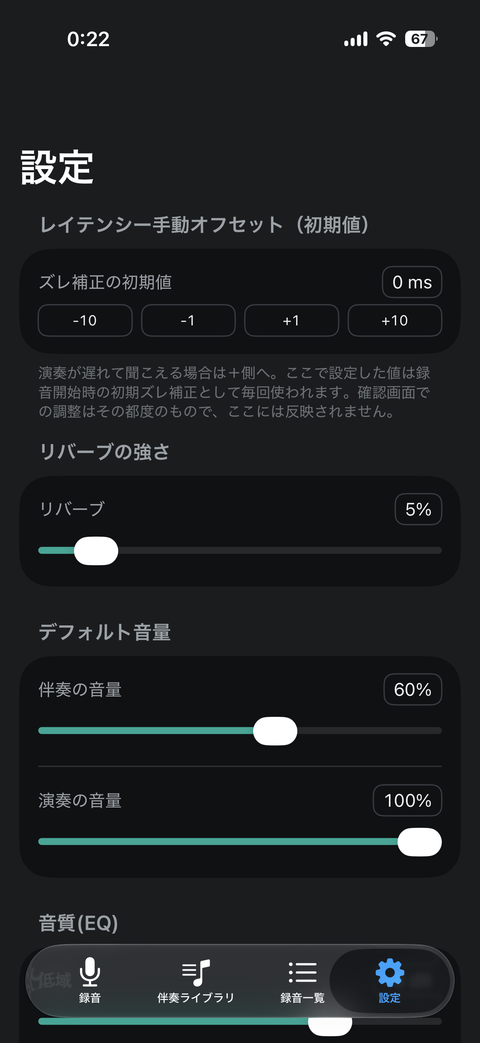
Set default values for the adjustments you make on the review screen, so you don't have to tweak them every time.
- Default timing correction (0 ms by default, adjustable in -10/-1/+1/+10 ms steps). This value is applied as the starting offset for your next recording — adjustments made on the review screen are one-off and aren't saved here
- Default reverb level
- Default volume levels (accompaniment and performance)
- Default EQ settings (low, mid, and high bands, Mimu Pro only)
6Mimu Pro
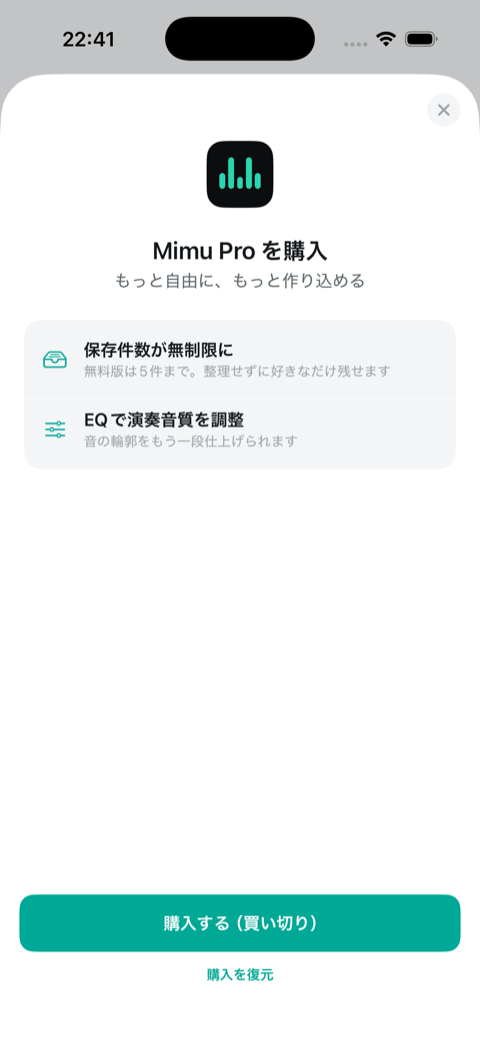
The free tier limits you to saving 5 recordings, and EQ isn't available. Upgrading to Mimu Pro removes that limit and unlocks EQ (low, mid, and high bands). It's a one-time purchase, not a subscription. You can buy or restore it from the "Upgrade to Mimu Pro" button at the top of the Settings tab.
7Contact
If you notice anything confusing about how the app works, or run into a bug, please reach out.
✉️ Send Feedback